Installation & Activation Instructions
1 Download the Installation File
Click the button below to download the Office installation tool to your computer. This tool simplifies installation and can be removed after completed installation of Microsoft Office.
Download Installation Tool2 Extract the Downloaded File
Locate the downloaded file in your Downloads folder, right-click it, and select "Extract All" or "Extract Here". Open the extracted folder.
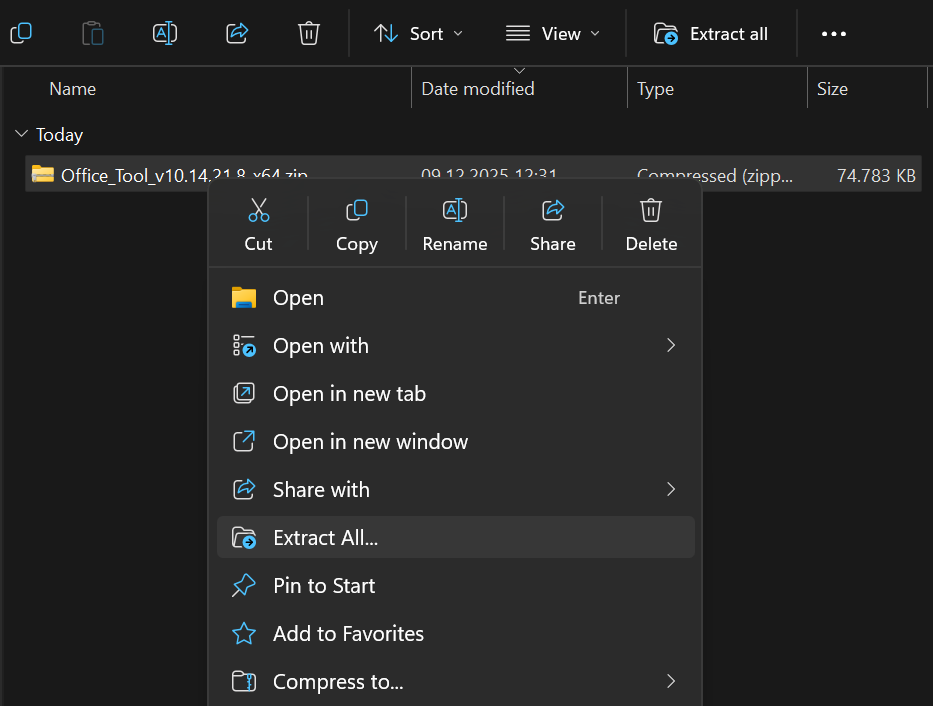
3 Open the Installation Tool
Double-click the file shown below to launch the Office installation tool. Click "Allow changes to be made on this computer", in order to install the program.
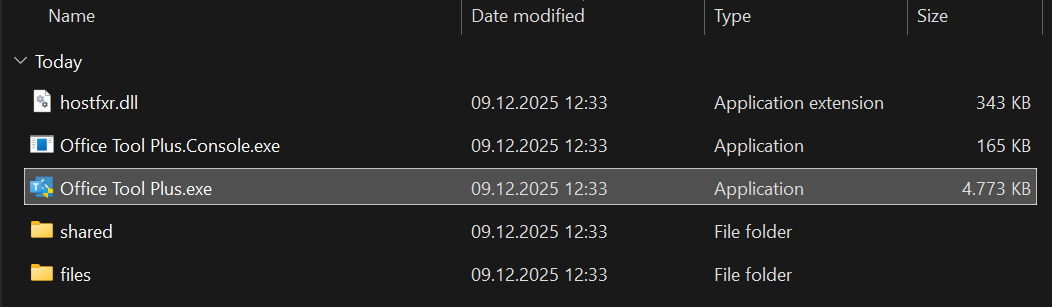
4 Skip Update Notification
If you see an update notification, you can skip it - no need to update at this stage.

5 Remove Existing Office
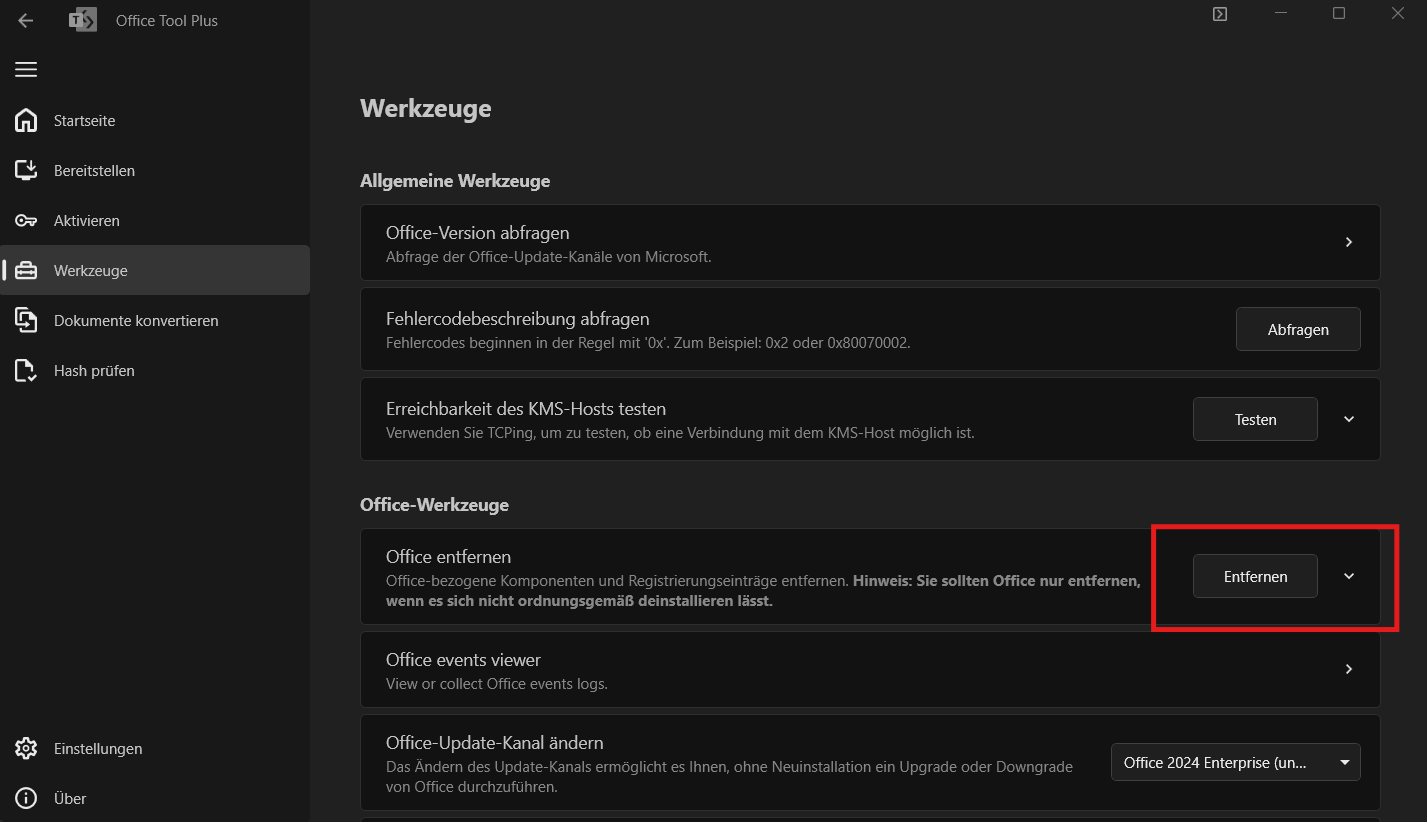
In the tool, click on "Tools" and then select "Remove Office" to uninstall any previous Office versions.
6 Select Office 2024 Professional Plus
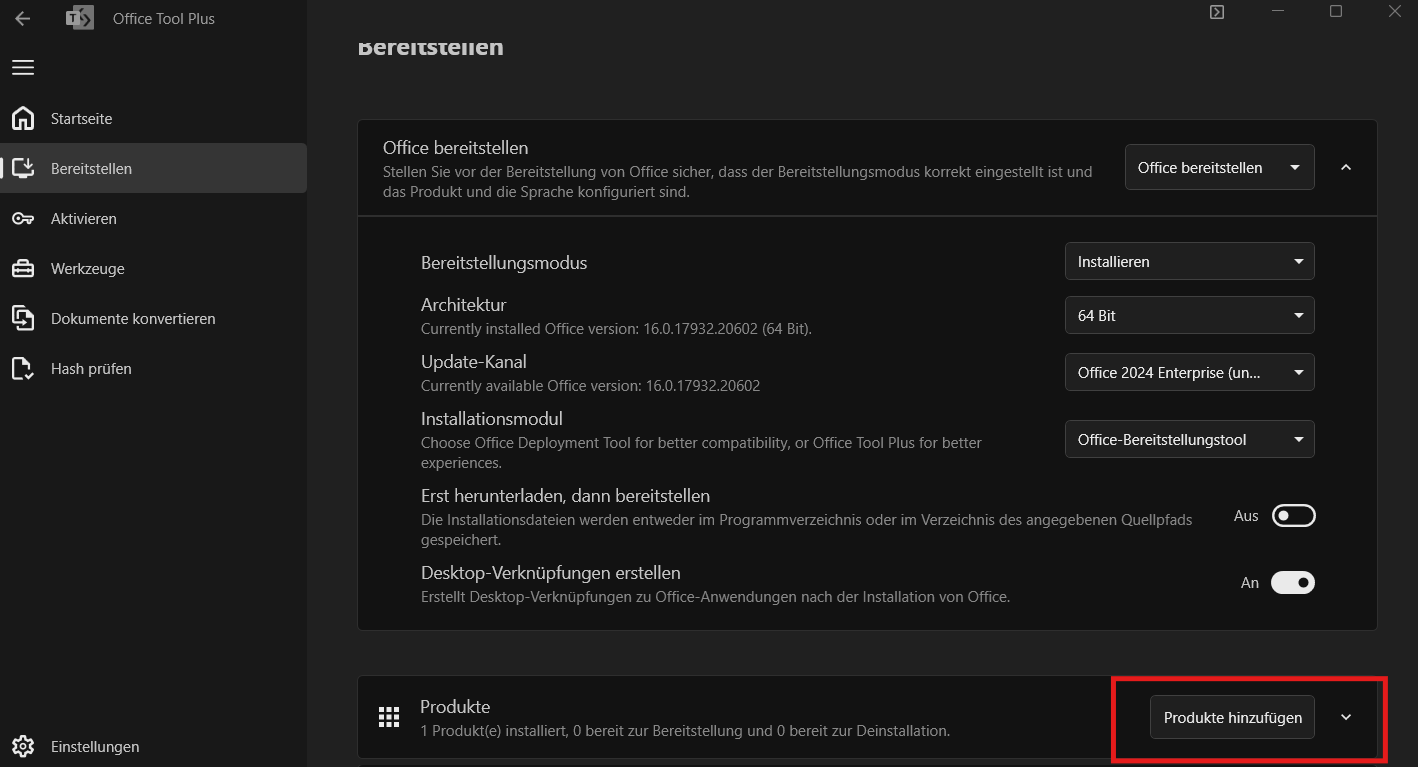
Navigate to the installation options and choose "Office LTSC Professional Plus 2024" from the available versions.
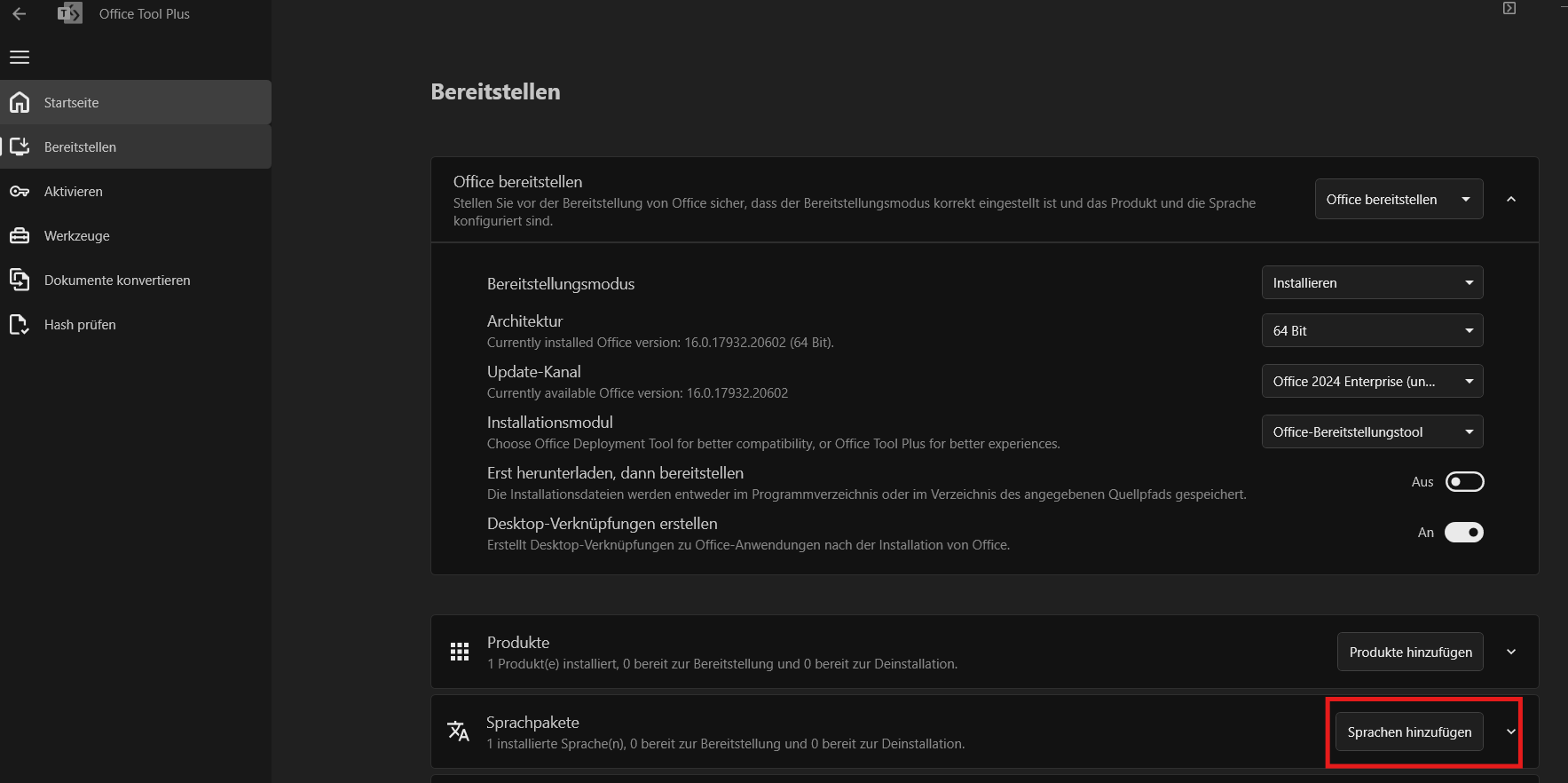
7 Select Languages
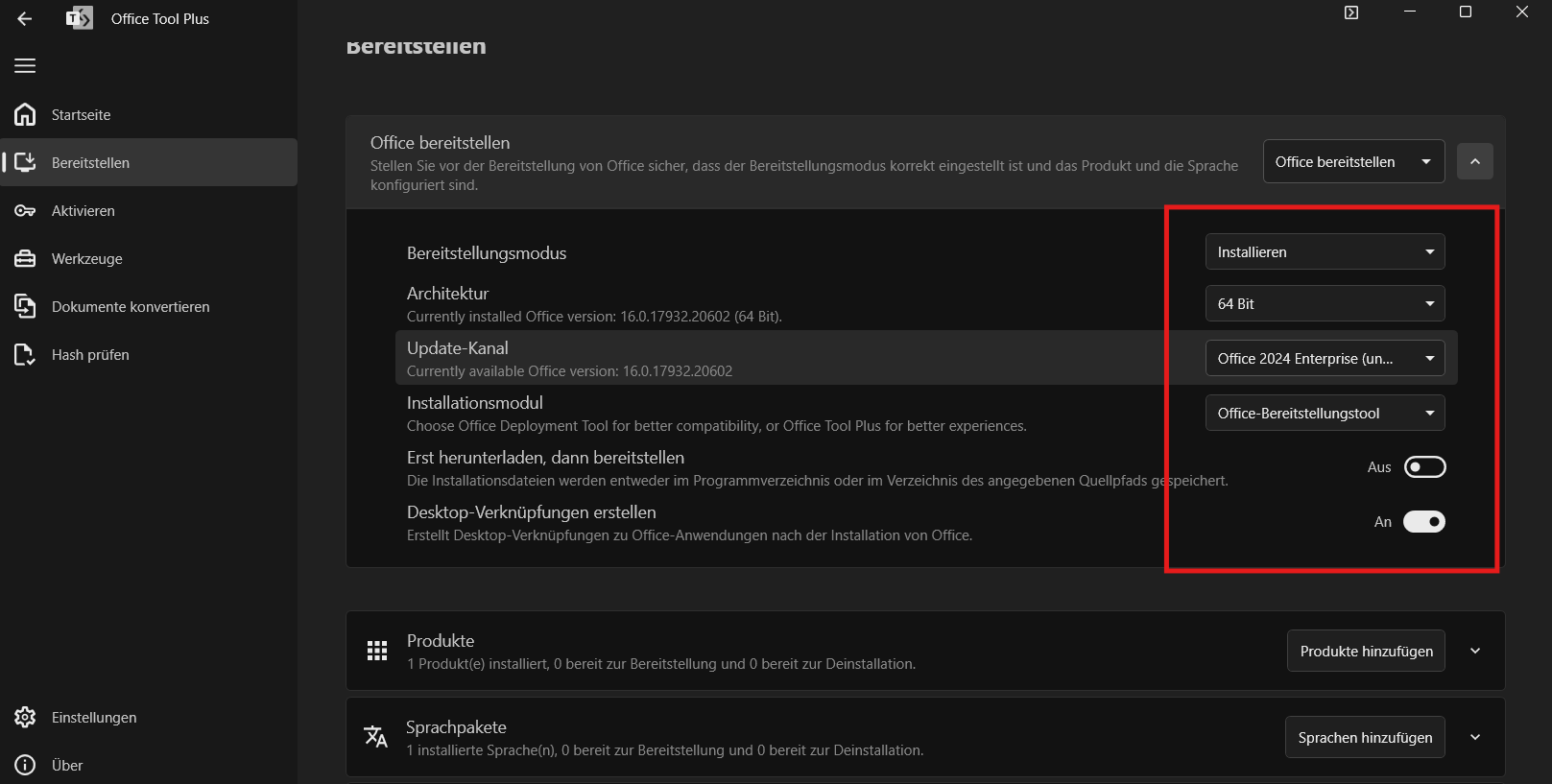
Choose the desired languages from the language packages selector, then click the "Install" button. Wait for the installation to complete - this may take several minutes. If error, double check the configuration matches the one in the image.
8 Start Installation
Choose "install", Office 2024 Enterprise and optionally create desktop shortcut.
9 Activate Your Office
After installation completes, open Microsoft Word. Click on "Account" (or "File" → "Account"), then click "Activate" and insert your product key when prompted.